See right away what has changed and where you need to take action
See when a guide responds, a colleague adds a comment, or a customer makes a decision on a proposal. From each notification, you can go directly to the relevant file.
Notice important changes without having to open every file
One guide accepts an assignment. Another guide declines. A colleague adds a practical note to an upcoming booking. Or a customer accepts a proposal that your team was still waiting for.
All of these events are important, but they take place in different cases and at different times.
Eguide compiles the supported events into a chronological feed. This allows your team to quickly see what has changed and which booking, guide request, or proposal requires further attention.
So you don't have to open individual files one by one to check whether anyone has responded in the meantime.
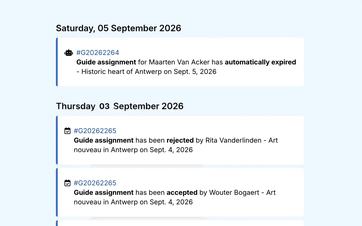
See right away who did what and what it's about
A report without context just shifts the burden of investigation elsewhere. You’ll know that something happened, but you won’t yet know who responded or which booking the report is associated with.
That is why each entry shows the person involved, the action, the corresponding tour or reference, and how much time has elapsed since the event.
From the notification, you can open the file directly so your team can continue working on it. This allows dispatch to immediately view the relevant booking after a refusal or open the corresponding proposal after a customer decision.
Filter by the type of follow-up you're looking for
As the feed grows, you can filter it by the event that's relevant to your work.
For example, you can view only accepted or rejected guide requests, track new booking notes, or see which proposals have been accepted, rejected, or automatically expired by the customer.
This way, an employee working on guide scheduling doesn't have to go through all the proposal notifications, while a colleague in sales can focus on customer responses.
Even a guide request that is marked as "Expired" due to the response deadline passing can reappear as an event in the follow-up.
See how your team can follow up on a report
We are tracking several reports in the relevant case file.
Respond more quickly when a guide makes a decision
When a guide accepts an assignment, the dispatch team can see it in the notifications feed. You don't have to wait for someone to happen to reopen the booking or guide assignment.
If a guide declines, you'll immediately see which guide responded and which request needs to be resubmitted. From the notification, you can go to the relevant booking and either find another guide for the group or send a new request.
Guides receive their own assignments and relevant updates in the workspace where they view and respond to assignments.
The central feed is intended for your internal team. It helps the dispatch team quickly incorporate responses from the Guide Portal into their operational follow-up.
Don't let new comments go unnoticed
A colleague can add a note to a booking when new practical information becomes available.
The feed shows who added the comment, when it was added, and which reservation it's associated with. From the notification, you can open the reservation and read the full context.
To learn how comments are stored internally or shared with guides, see the section on saving comments and communications for the relevant booking.
Track how customers respond to proposals
A proposal can be accepted, rejected, or automatically expire if the customer does not respond within the specified time frame.
These events appear in the notifications feed. This way, the sales team doesn't have to manually check every open proposal to see if the customer has made a decision in the meantime.
If the proposal is accepted, you can proceed directly to the new booking, which still needs to be validated. If the proposal is rejected or has expired, open the original file and decide whether further action is needed.
You can draft the proposal first, send it, and then have it processed into a booking.
Synchronize events with your schedule
A notification tells you what has changed. The calendar shows when the booking in question takes place.
After an important guide response or a new comment, you can therefore view the booking in your daily, weekly, or monthly schedule.
Meanwhile, the dashboard remains the main starting point for booking numbers, recent activity, and guide reviews. From that operational overview, you can navigate to the notifications to view specific events.
Use the feed as an indicator, not as a complete audit log
The notification feed logs supported operational events. It does not automatically display every change that has ever been made to every field in Eguide.
So you can use them to track recent comments and changes, but not as a complete audit log for the entire system.
That distinction keeps the feed useful: it shows events that your team may need to respond to, rather than indiscriminately logging every minor change.
Frequently Asked Questions About Reports and Activity
Practical answers about your succession.
The feed displays supported events related to guide responses, booking comments, and proposals.
This includes accepted and rejected guide requests, new booking notes, and proposals that have been accepted, rejected, or automatically expired by the customer.
Yes. You can filter the feed by the type of event you want to follow.
For example, you can focus on guide reviews, booking comments, or decisions regarding proposals.
Yes. A notification shows the person involved, the action, the relevant file or tour, and how much time has elapsed since the event.
This gives you more context than a general status update alone.
Yes. Notifications use the reference number of the relevant booking, guide request, or proposal to open the correct file.
This allows you to continue working right away without having to search for the file again first.
No. The feed displays only the supported event types and does not automatically log every change to every field.
It is intended as an operational follow-up summary, not as a complete technical audit log.
Yes. When a new assignment comes in, a guide receives an email and a notification in the Guide Portal.
The guide is also automatically notified in the event of relevant changes to an accepted assignment or if an assignment is canceled.
Can't find your question here? Please contact us. We'd be happy to help you determine which events your team would like to track within Eguide.